Vivino Orders Import
On this page, you will find out how to:
- enable import of orders by connecting your Vivino merchant account with Mulwi;
- start processing your Vivino orders in Shopify;
- edit your Vivino Order Import connection;
- remove your Vivino Order Import connection.
Set up the connection
NOTE
Before you set up Vivino Order Import in Mulwi, you need to get the API credentials for your Vivino merchant account.
You can obtain your Vivino API credentials from the platform's support team. Your Vivino contact should provide you with your account's Merchant ID, Client ID, and Client Secret.
To create and set up a Vivino Order Import connection, follow these steps:
Steps for setting up Vivino Order Import connection in Mulwi
- In your Shopify admin, go to Apps > Mulwi Feeds > Import orders.
- Click Add Order Import.
- Click Select next to the Vivino logo.
- In the pop-up window, enter a Name for your connection and click Save connection.

Create a Vivino Order Import connection
- Fill in the connection's Configuration settings:
- Merchant ID. Copy the Merchant ID value from your Vivino API credentials.
- Client ID. Copy the Client ID value from your Vivino API credentials.
- Fill in the connection's Login details:
- Client Secret. Copy the Client Secret value from your Vivino API credentials.
- Username. Specify the email you use to log in to your Vivino merchant account.
- Password. Specify the password you use to log in to your Vivino merchant account.
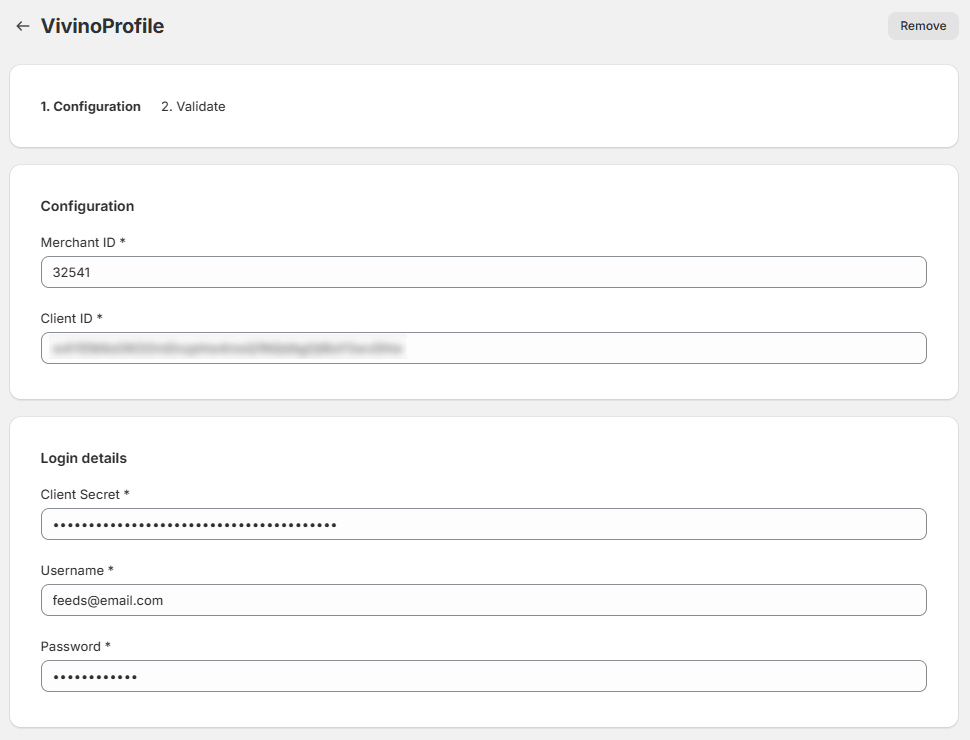
Vivino Order Import main configuration settings during setup
- Edit the connection's Extra settings:
- Enable Test Mode. Set to No. This option is for internal use by our support team only.
- Prefix for exported VivinoProfile orders. Enter a string that will be prepended to the names of imported orders. It will help you easily identify these orders later.
- Click Next.

Vivino Order Import extra configuration settings during setup
- Wait for Mulwi to establish connection with Vivino.

Vivino Order Import connection validation
- Click Finish to complete the setup.
- Go to Mulwi Feeds > Import orders again and check your connection status. It should be Ready.

Vivino Order Import connection ready
Once your connection is ready, you can start processing imported Vivino orders in Shopify.
Process Vivino orders in Shopify
Mulwi automatically imports all orders placed in Vivino into Shopify.
You'll find your imported Vivino orders in Shopify's Orders tab.
They are easily identifiable by the vivino tag and a prefix in their name.
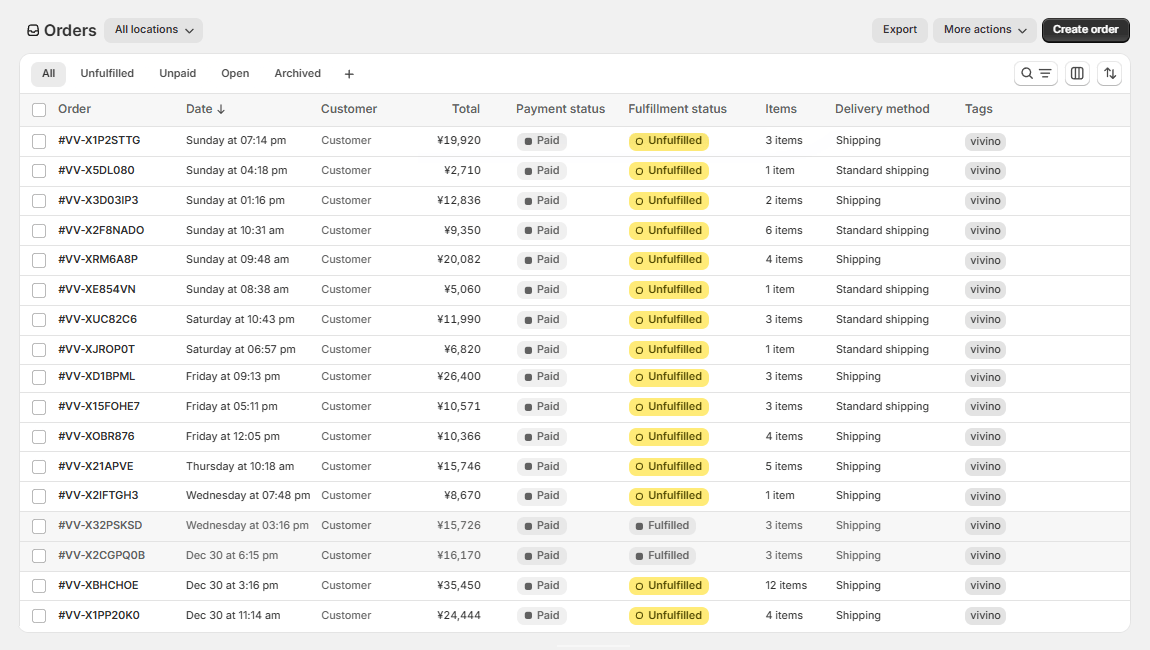
For detailed information on processing orders within Shopify, please refer to Shopify's documentation on order management.
WARNING
Any changes you make to imported orders in Shopify don't sync with Vivino. You must update orders in Vivino manually.
Edit the Vivino Order Import connection
The settings of a Vivino Order Import connection are divided into 4 sections: Vivino, Configuration, Login details, and Extra settings.
In the Vivino section, you can edit these general settings:
- Name. A descriptive name of your connection.
- Active. Whether Mulwi should import orders over this connection. If you disable this option, Mulwi will stop importing order data.

In the Configuration section, you can change the API credentials of your linked Vivino merchant account:
- Merchant ID. Your unique identifier as a Vivino merchant.
- Client ID. A unique identifier that lets you send API requests to Vivino.

In the Login details section, you can change the login credentials of your linked Vivino merchant account:
- Client Secret. A unique private key that authenticates your API requests to Vivino.
- Username. The email used to log in to your Vivino merchant account.
- Password. The password used to log in to your Vivino merchant account.

NOTE
Changing Vivino API or login credentials doesn't affect the previously imported orders.
In the Extra settings section, you can edit these general settings:
- Enable Test Mode. This option is for internal use by our support team only. Make sure it is always set to No.
- Prefix for exported VivinoProfile orders. A string added to the start of the imported order's name, for example: "#VV-000001". It helps identify imported orders among others.

Remove the Vivino Order Import connection
To remove a Vivino Order Import connection, navigate to its settings page and click the Remove button next to the connection's name. Once you do this, Mulwi will disconnect from your Vivino merchant account and stop importing order data.