Feed Quality Control
With the Quality Control tool, you can identify and fix issues in your product feed before uploading it to sales channels.
Mulwi flags feed problems that could prevent your products from being listed, helping you quickly resolve them and optimize your feed for best results.
Types of Quality Control issues
Mulwi's Quality Control detects three types of issues:
| Issue status | Description | Examples |
|---|---|---|
| Errors | Critical issues that you absolutely must resolve, otherwise your products will be rejected | Missing required attributes, duplicate unique values, invalid data (title too long, wrong price format, etc.) |
| Warnings | Important issues that won't prevent listing but may affect product visibility or performance | Missing recommended attributes, duplicate product titles |
| Improvements | Suggestions that will help you optimize your feed for the best results | Product title optimization, enhanced attribute data format, adding optional attributes |
When you run a Quality Control scan, Mulwi provides the breakdown of all errors, warnings, and improvements for each of the feed's product separately.
Generate a Quality Control report
NOTE
Quality Control is currently available only for product feeds based on these templates: Google Shopping, Awin, Adcell, Idealo, and Shopping24.
If you are using a different feed template and would like a feed audit with improvement recommendations, please contact our support team.
To generate a Quality Control report for your Mulwi feed, follow these steps:
- In your Shopify admin, go to Apps > Mulwi Feeds > Feeds.
- Click Edit next to the feed you need.
- Find the Quality Control block.
- Click Generate Report to run the Quality Control scan. This button will be named Regenerate report if you've used Quality Control for the selected feed before.
NOTE
Depending on the size of your feed, the report may take some time to generate.
Once the scan is complete, the Quality Control block will display a summary of all detected issues.

You can then view the detailed report in Mulwi or download the report to analyse it offline.
You can regenerate the report at any time by clicking the Regenerate report button. This will help you analyse your feed's quality after changing your products or feed configuration.
NOTE
Mulwi can only provide the report of the last Quality Control scan. After you regenerate the report, you won't be able to view the previous report in the app.
View the Quality Control report in Mulwi
To view the Quality Control report for your Mulwi feed, follow these steps:
- In your Shopify admin, go to Apps > Mulwi Feeds > Feeds.
- Click Edit next to the feed you need.
- Find the Quality Control block.
- Click View report to open your latest report in Mulwi.
Upon opening your Quality Control report, you can group its entries by products or issue status.
View the Quality Control report by products
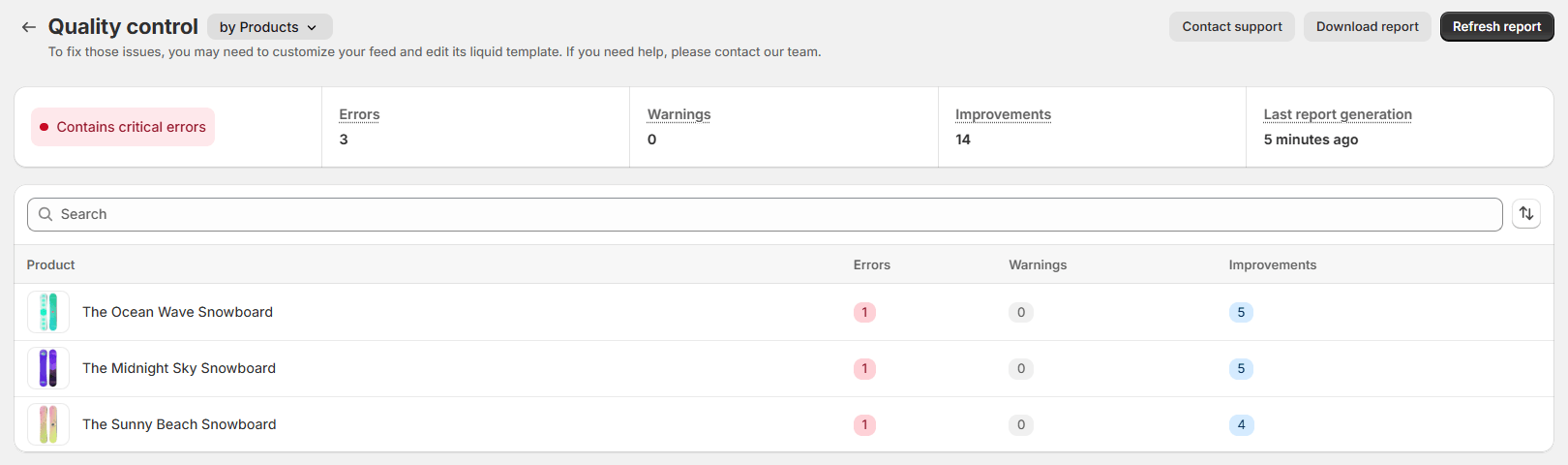
To group entries in your Quality Control report by products, choose the by Products option from the dropdown menu at the top of the report.
Quality Control report grouped by products is represented as a table where each row corresponds to one product in the feed. By clicking on the table row with the specific product title, you can see all issues of your selected product.
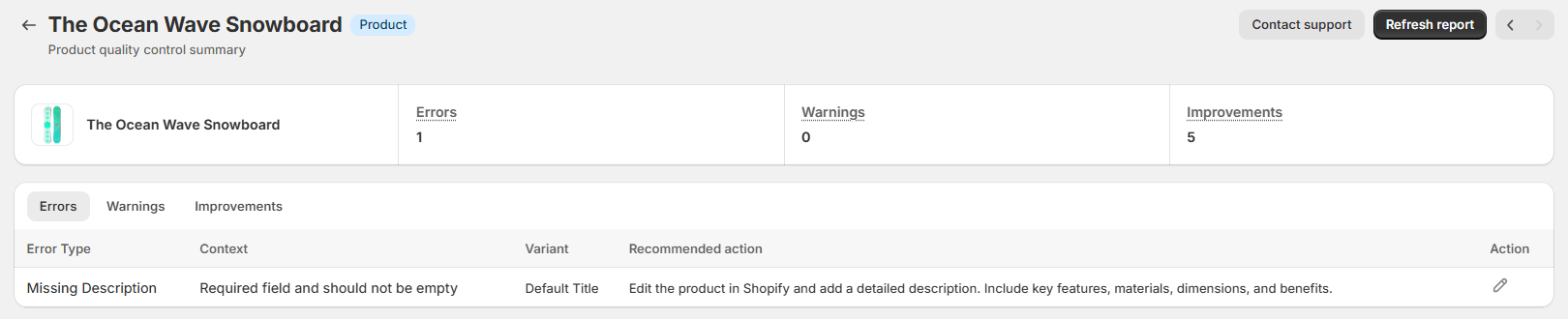
The product's in-depth issue breakdown is grouped into tabs by issue statuses (errors, warnings, and improvements). Each of these tabs displays a table with the following information:
- Type. A brief name of the issue.
- Context. A detailed explanation of the issue.
- Variant. Title of the specific product variant with the issue.
- Recommended action. Mulwi's recommended way to resolve the issue.
- Action. The button that lets you immediately take action to resolve the issue:
- Pencil icon. Opens the product editing page in Shopify so that you can change the product data in your store.
- Angle brackets icon. Opens the feed editor in Mulwi so that you can change the template of your feed. If your feed isn't customized yet, Mulwi will instead prompt you to customize the feed.
After fixing all issues, you can click Refresh report at the top of the report viewer to scan your updated feed.
NOTE
If you need help optimizing your feed according to its Quality Control report, don't hesitate to contact our support team. We will be happy to assist you.
View the Quality Control report by status
To group entries in your Quality Control report by issue status, choose the by Status option from the dropdown menu at the top of the report.
Quality Control report grouped by issue status is represented as a table where each row corresponds to one specific issue. You switch between issue statuses (errors, warnings, and improvements) using tabs at the top of the table.
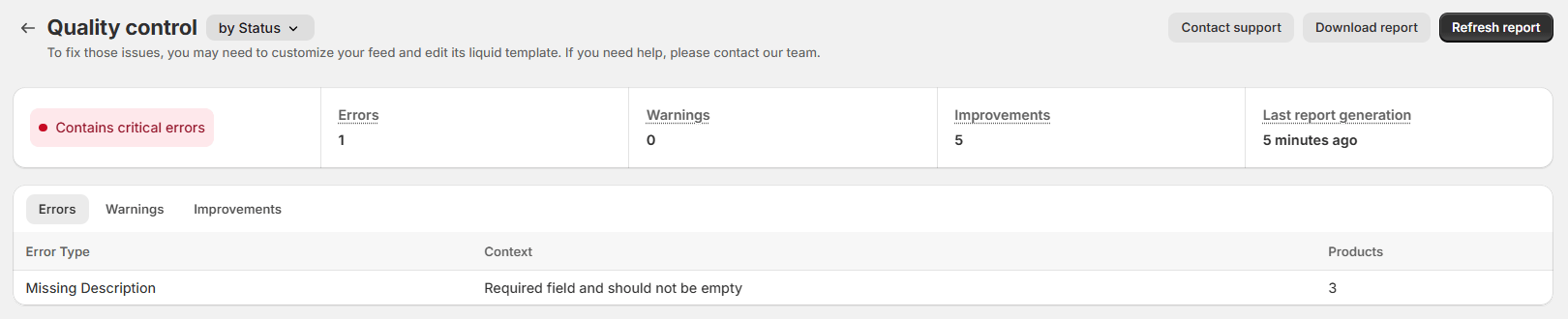
Each row of the report table displays the following information about your feed's issue:
- Type. A brief name of the issue.
- Context. A detailed explanation of the issue.
- Products. Total number of products with the issue.
By clicking on the table row with the specific issue, you can see all products that have your selected issue and the recommended way to resolve it.
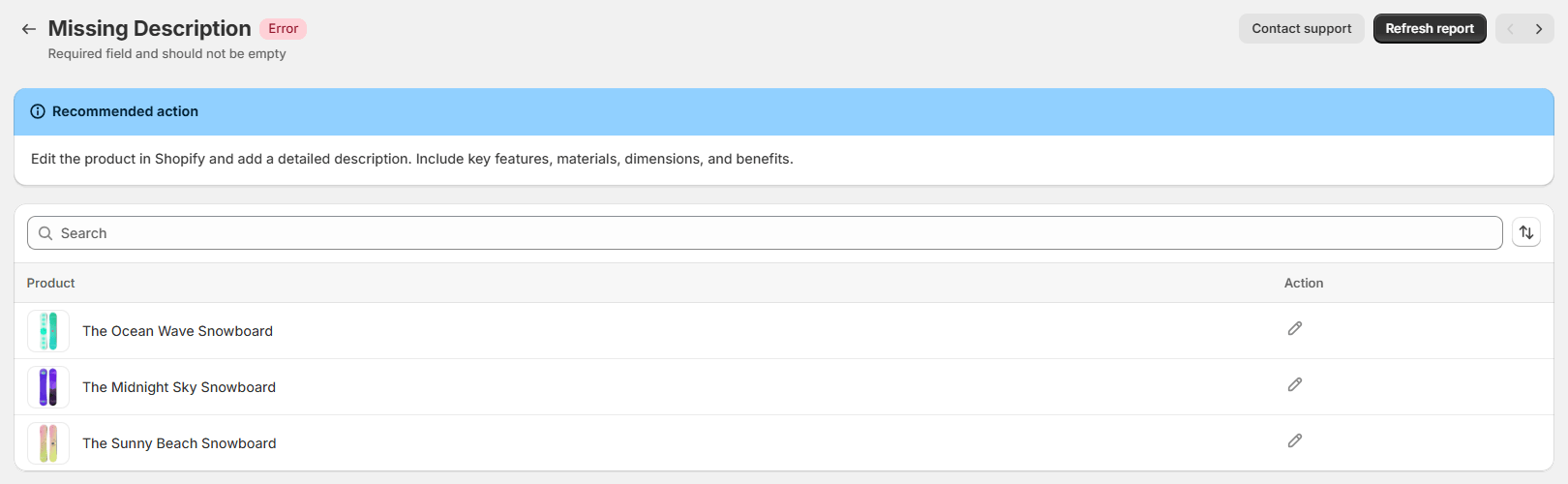
The issue's in-depth breakdown is represented as a table with the following information:
- Product. Title and image of the specific product with the issue.
- Action. The button that lets you immediately take action to resolve the issue:
- Pencil icon. Opens the product editing page in Shopify so that you can change the product data in your store.
- Angle brackets icon. Opens the feed editor in Mulwi so that you can change the template of your feed. If your feed isn't customized yet, Mulwi will instead prompt you to customize the feed.
After fixing all issues, you can click Refresh report at the top of the report viewer to scan your updated feed.
NOTE
If you need help optimizing your feed according to its Quality Control report, don't hesitate to contact our support team. We will be happy to assist you.
Download the Quality Control report
You can export your Quality Control report as an Excel file to analyse it offline or share it with your team.
You download your Quality Control report locally in such way:
- In your Shopify admin, go to Apps > Mulwi Feeds > Feeds.
- Click Edit next to the feed you need.
- Find the Quality Control block.
- Click View report to open your latest report in Mulwi.
- Click Download report at the top of the page to initiate the download.
As a result, the Quality Control report will be downloaded to your device. You can then open it using any spreadsheet software.