Translate the feed
Connect your store to third-party translation services to get a product feed in any supported language.
Supported translation options
Mulwi supports these translation services:
- Shopify translation apps (Langify, Shopify Translate & Adapt, LangShop, etc.)
- Google Translate
- Weglot
- DeepL
We are constantly working to expand the list of supported Shopify translation apps.
To find out if Mulwi supports your Shopify translation app, please reach out to our support team.
Configure translation
By default, translation in Mulwi is disabled. Thus, if you want to use the translation service in the feed, you first need to enable translation in Mulwi's settings.
If you use a Shopify translation app, you can proceed directly to enabling translation in Mulwi.
For Google Translate, Weglot, and DeepL, you first need to get an API key for the desired service and only then enable translation using that service.
Obtain an API key for the external translation service
If you plan to use Google Translate, Weglot, or DeepL, you'll first need to obtain an API key from that external service. This key will be required later when you connect the service to Mulwi.
Follow the steps below to get the API key from your chosen translator:
Steps for getting an API key from Google Translate
- Log in to your Google Cloud platform dashboard.
- Create a new project.
- Enable the Cloud Translation API for your project.
- In the Cloud Translation API dashboard, go to the Credentials tab and select Create credentials > API key.
- Wait for Google to generate an API key and copy it from the API Key section.
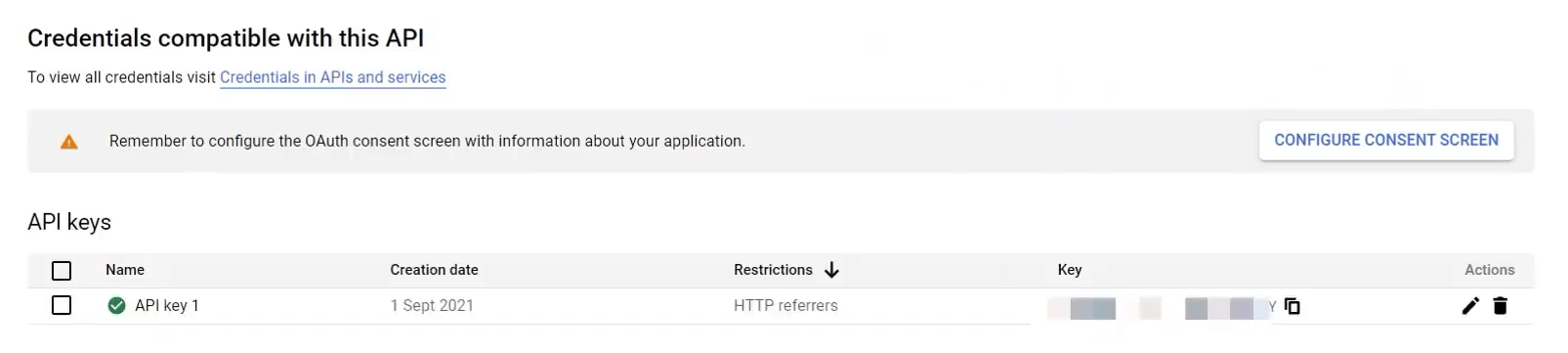
Google Translate API Key
Steps for getting an API key from Weglot
- Log in to your Weglot dashboard.
- From your project page, go to Settings > Setup.
- You will find the API key in the API key section.

Weglot API Key
Steps for getting an API key from DeepL
- Log in to your DeepL dashboard.
- On your account profile page, go to the API Keys tab.
- You will find an automatically generated API key in the API Key section.
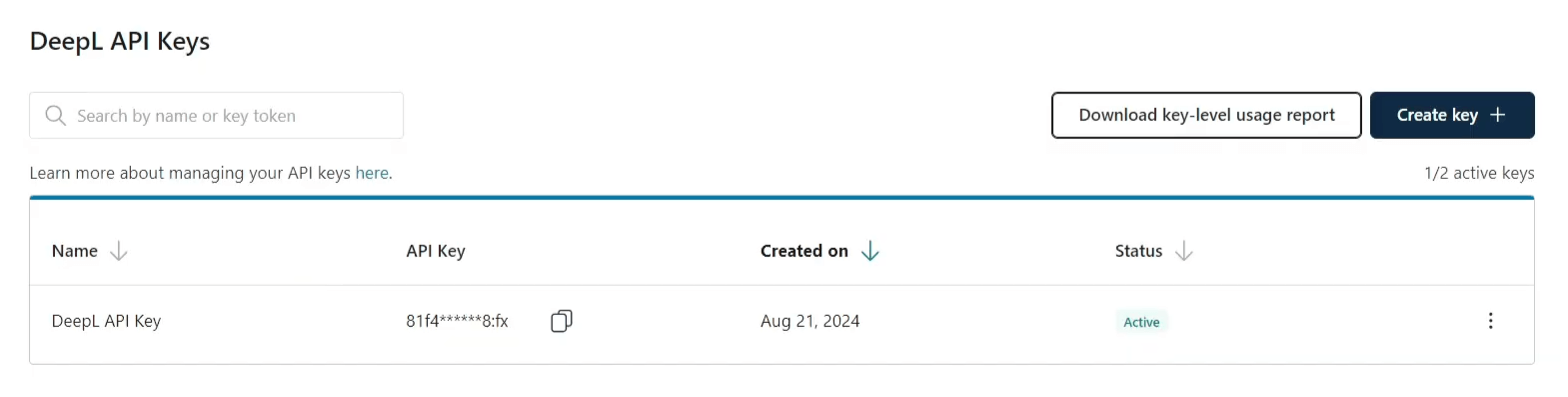
DeepL API Key
Once you've obtained the API key, you can proceed to enabling translation in Mulwi.
Enable translation in Mulwi
NOTE
To use Google Translate, Weglot, or DeepL, you first need to obtain an API key from that service.
To enable translation in Mulwi, follow these steps:
- In your Shopify admin, go to Apps > Mulwi Feeds > Settings.
- In the Translation section, find the Translation service setting.
- Enable the Use a translation service option.
- Click the radiobutton next to the translation service you need.
- If you selected Google Translate, Weglot, or DeepL, provide the service's API key in the API key input field.
- Click Save at the top of the page to apply new settings.
After saving, you can start using your service to translate the feed.
Translate the feed
When you translate your store into a new language, your data is translated by an external translation service, and the generated translations are then saved in a separate database.
For example, Shopify translation apps like Langify store translations in GraphQL files.
Instead of retranslating the feed every time, Mulwi fetches translations from this database, thus saving you time and resources.
NOTE
Using external translation services may result in additional costs.
Select the attributes to translate
If you're using a Shopify translation app, you don't need to do anything.
In this case, all the available attributes will be translated automatically.
If you're using Google Translate, Weglot, or DeepL, you need to add the | t modifier (Liquid filter) to the attributes you want to translate.
All prebuilt templates add this modifier to the feed title and description by default.
To add the | t modifier to other attributes, you need to customize your template.
You can use this modifier in both CSV/TXT/XLSX and XML feeds.
How to use the modifier in a custom CSV/TXT/XLSX feed template
- Navigate to the feed you want to translate.
- Click Edit template in the Template section.
- In the Columns section, click the gear icon next to the required attribute.
- Click the Add modifier button under the required attribute.
- Select Translate in the new dropdown menu that appeared.
- Repeat steps 3-5 for all required attributes.
- Click Save at the top of the page to apply new settings.
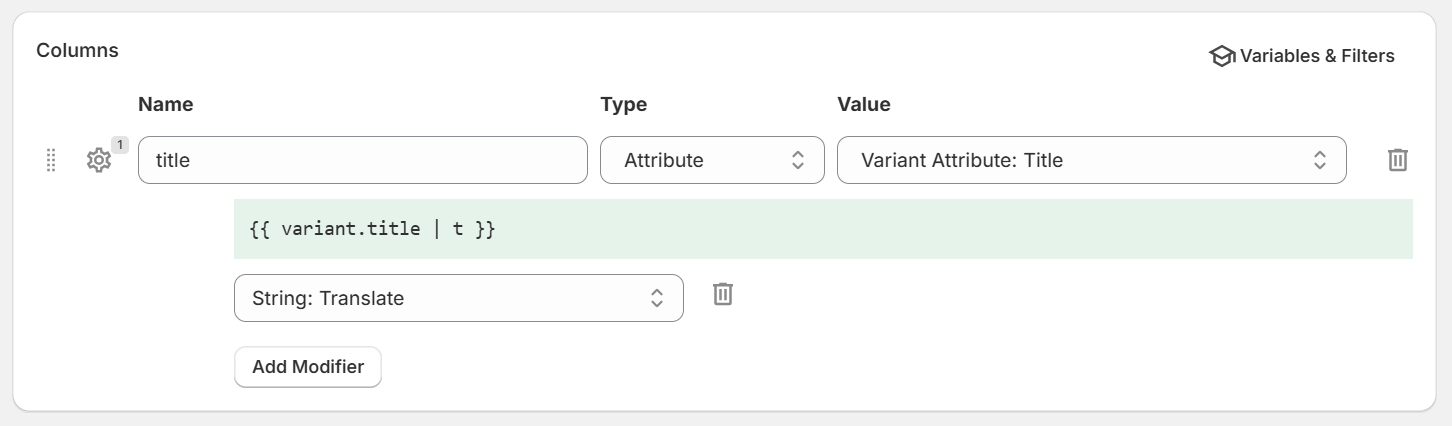
Translation modifier in a CSV/TXT/XLSX feed template
How to use the modifier in a custom XML feed template
- Navigate to the feed you want to translate.
- Click Edit template in the Template section.
- Find the required attribute in the Template and place the modifier after the attribute's Liquid object:
{{ object.attribute | t }}.
For example:<title>
{{ product.title | t }}
</title> - Repeat step 3 for all required attributes.
- Click Save at the top of the page to apply new settings.
Select the translation language
To configure the translation language, follow these steps:
- In your Shopify admin, go to Apps > Mulwi Feeds > Feeds.
- Click Edit next to the feed you need.
- Find the Translation section.
- In the Language field, choose the required language from the dropdown menu.
- Click Save at the top of the page to apply new settings.
After you select the language, all the attributes you've selected will be translated automatically.
NOTE
If you're using a Shopify translation app, only the languages your store has been translated into will be available.
If you don't see a language that already exists in your store, click the Synchronize now option to schedule a sync.
Once the synchronization is complete, try selecting the translation language again.
If you see a warning and a Set up translation service button in the Translation section, it means that translation is disabled.
In this case, you first need to enable translation in Mulwi's settings.
If you click the button in this section, Mulwi will automatically take you to its Settings page.

Use multiple translation languages in one feed
Mulwi lets you use both the translated and original attribute values in the same feed. This is helpful when you sell on international channels or simply want to include the default content alongside its translation.
You can access an attribute's original value in translated feeds by adding the _orig suffix to the attribute name.
Example of using both translated and original attributes in an XML feed
Here's how you would add both the original and translated product title to the feed:
<title-en><![CDATA[{{ product.title_orig }}]]></title-en>
<title-lv><![CDATA[{{ product.title | t }}]]></title-lv>
NOTE
Attributes with the _orig suffix will always return the original value, even if feed translation is enabled.
If you're using a Shopify translation app, you can also include translations for multiple languages at once. This works for Custom XML, Custom CSV, Custom TXT and Custom XLSX feeds.
To export several languages, select two or more languages in the Language field of the feed's Translation card. After that, Mulwi asks you to choose the Default translation language. It can be one of the selected languages or your store's language.
The Default translation language is used for all fields without a language code. For example, {{ variant.title }} or a CSV column without the Translate (Shopify, multi-language) modifier is exported in this language. If your template has no loop or language columns yet, the whole feed is exported in the Default translation language.
To create a multi-language XML feed, you need to iterate over the feed's languages using the context.feed.locales Liquid object and load the necessary translations using the | tt modifier (Liquid filter) with the field name and locale parameters.
Example 1: One item per language in an XML feed
Each product is added to the feed once per language:
<?xml version="1.0" encoding="utf-8" ?>
<rss version="2.0" xmlns:g="http://base.google.com/ns/1.0">
<channel>
{%- for variant in context.product_variants %}
  <item>
    <g:id><![CDATA[{{ variant.id }}]]></g:id>
    <title><![CDATA[{{ variant.title_orig }}]]></title>
    <description><![CDATA[{{ variant.body_html_orig | strip_html }}]]></description>
  </item>
  {%- for locale in context.feed.locales %}
  <item>
    <g:id><![CDATA[{{ variant.id }}]]></g:id>
    <title><![CDATA[{{ variant | tt: 'title', locale }}]]></title>
    <description><![CDATA[{{ variant | tt: 'body_html', locale | strip_html }}]]></description>
  </item>
  {%- endfor %}
{%- endfor %}
</channel>
</rss>
Example 2: One item with a tag for each language in an XML feed
Each product is added to the feed once. Every language gets its own tags:
<item>
  <g:id><![CDATA[{{ variant.id }}]]></g:id>
  <title><![CDATA[{{ variant.title_orig }}]]></title>
  <title-de><![CDATA[{{ variant | tt: 'title', 'de' }}]]></title-de>
  <title-fr><![CDATA[{{ variant | tt: 'title', 'fr' }}]]></title-fr>
  <description><![CDATA[{{ variant.body_html_orig | strip_html }}]]></description>
  <description-de><![CDATA[{{ variant | tt: 'body_html', 'de' | strip_html }}]]></description-de>
  <description-fr><![CDATA[{{ variant | tt: 'body_html', 'fr' | strip_html }}]]></description-fr>
</item>
In CSV, TXT and XLSX feeds each product stays in one row, so every language needs its own column. To add translated columns, use the Translate (Shopify, multi-language) modifier. A column without this modifier is exported in the Default translation language. To add a column in your store's language, use an attribute with the _orig suffix, for example {{ variant.title_orig }}.
How to add a multi-language column in a custom CSV/TXT/XLSX feed
- Navigate to the feed you want to translate.
- Click Edit template in the Template section.
- In the Columns section, click Add column and name it after the field and language, for example
title_de. - Select Attribute as the type and choose the attribute you want to translate, for example Variant Attribute: Title.
- Click the gear icon next to the column.
- Click the Add modifier button under the column.
- Select Translate (Shopify, multi-language) in the new dropdown menu that appeared.
- Enter the language code, for example
de. - Repeat steps 3-8 for every field and language you need.
- Click Save at the top of the page to apply new settings.
Missing translations and the original language
If a product has no translation for a language, the field is exported in the Default translation language. For example, if the Default translation language is German and a product has no French translation, the title-fr tag or the title_fr column will contain the German title.
To export the original text for missing translations, choose your store's language as the Default translation language. In this case, fields without a language code and fields without a translation keep the original text.
To add a separate tag or column in your store's language, use attributes with the _orig suffix, for example {{ variant.title_orig }}. Attributes with the _orig suffix always return the original text, whatever Default translation language you choose.
NOTE
If you need help setting up multiple languages in one feed, please reach out to our support team. We'll be happy to help you configure your template.