CHECK24
On this page, you will find out how to:
- prepare a CHECK24 product feed using Mulwi;
- connect your Shopify store to CHECK24;
- upload your Mulwi feed to CHECK24;
- solve common questions regarding CHECK24 product feeds.
1. Create the product feed
NOTE
CHECK24 requires certain product information to be specified only in German:
CHECK24 feed attributes that must be in German
- name. The product's title.
- description. The product's description with HTML structure.
- color. The product's color(s).
- material. The product's material(s).
- delivery_includes. The total content included in the delivery of the product.
- delivery_time. The delivery time of your product (preferably in workdays).
- manufacturer_city. The city of your product's manufacturer.
- manufacturer_country. The country of your product's manufacturer.
- category_path. The product's full category path in your store.
- two_men_handling. The information whether your product is delivered to the curb or home (in case the product is delivered by a forwarding agent).
Before connecting your store to CHECK24, you first need to create and configure the feed. To do this, log in to your Shopify store admin and follow these steps:
Steps for creating a CHECK24 product feed in Mulwi
- Go to Apps > Mulwi Feeds > Feeds.
- Click Add Feed to generate the new feed.
- Choose the CHECK24 feed template. The feed is created in CSV format.
- In the pop-up window, select which product data to use as feed content and click Create. You can change this later in the Feed content field of the feed's general settings if necessary.
- Set feed's status in the This feed is currently block to Active.
- Fill in the general feed information:
- Feed Internal Name. Give your feed a descriptive name.
- Filename. Give your feed file a unique name.
- Max Number of Items per File. Limit the amount of products in the feed.
- Compression. Compress the feed file if necessary.
- Protect feed with password. Password-protect your feed if necessary.
- In the Applied Filters section, you can use product filters to choose what products should be included in the feed.
- Fill in the Specific Fields in the Template section:
- Size. Select all the attributes that indicate the product's size.
- Color. Select all the attributes that indicate the product's color.
- Material. Specify the materials that the product is made of.
- Size Height. Specify the product's height dimension with the measurement units (for example, 120 cm).
- Size Depth. Specify the product's depth dimension with the measurement units (for example, 45 cm).
- Size Width. Specify the product's width dimension with the measurement units (for example, 60 cm).
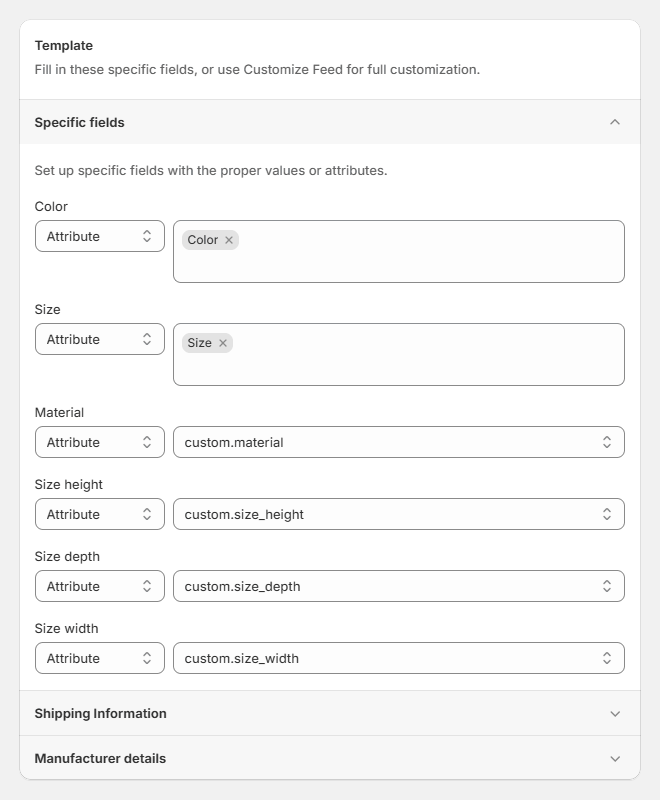
Filling out required specific fields in a CHECK24 feed template
- Fill in the Shipping Information in the Template section:
- Delivery Time. Specify the product's estimated delivery duration as a text string, preferably in working days (for example, 2–4 Werktage).
- Delivery Costs. Specify the cost of delivering the product in Euros. Enter it as a numeric value using period as a decimal separator (for example, 4.99).
- Delivery Includes. Specify the brief description of all items in the product's delivery package. For example, enter 1x Tisch, 4x Stuhl if the product package that's delivered to a customer includes 1 table and 4 chairs.
- Shipping Mode. Specify the method used to dispatch and deliver the product (for example, Package).
- HS-Code (only for businesses without a German VAT ID). Specify the eight-digit Customs Tariff Number that identifies your product. For example, enter 94034010 if the product is a fitted kitchen unit.
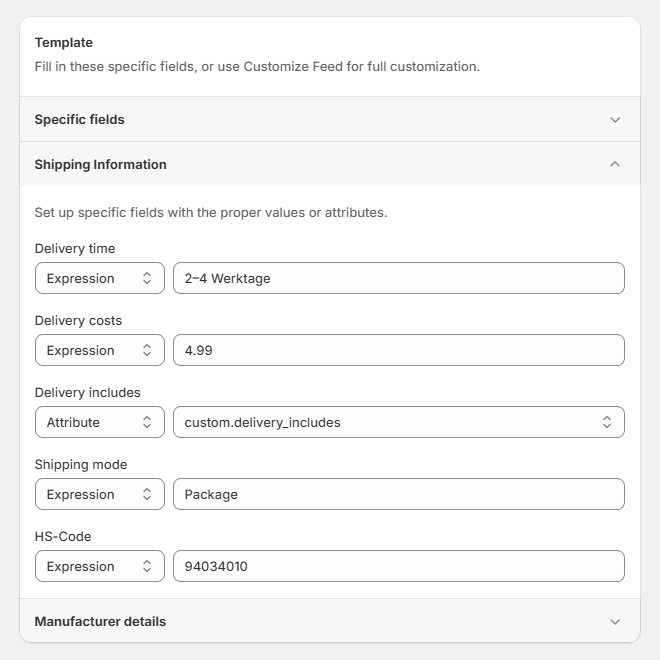
Filling out required shipping information in a CHECK24 feed template
- Fill in the Manufacturer Details in the Template section:
- Manufacturer Street. Specify the street address (street name and building number) where the manufacturer is located (for example, Hauptstraße 12).
- Manufacturer Postcode. Specify the postal code of the address where the manufacturer is located (for example, 10115).
- Manufacturer City. Enter the name of the city where the manufacturer is located (for example, Berlin).
- Manufacturer Country. Enter the full name of the country where the manufacturer is located (for example, Deutschland).
- Manufacturer Email. Enter the manufacturer's contact email address (for example, [email protected]).
- Manufacturer Phone Number. Enter the manufacturer's contact phone number in the international format (for example, +49301234567).
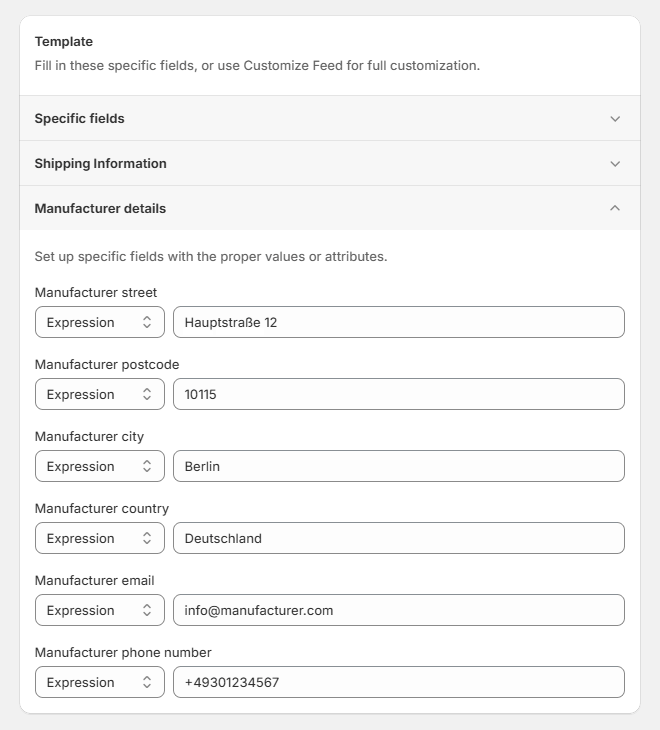
Filling out required manufacturer details in a CHECK24 feed template
- In the Source of prices section, you can set product prices from Markets or Price Lists.
- In the Stock Locations section, select from which locations you want to include stock levels and availability information.
- In the Translation section, you can select a language to translate your feed into.
- Configure the Google Analytics section if you have an analytics campaign.
- Click Save at the top of the page to finish and generate the feed.
NOTE
You won't be able to change the Filename after you save the feed.
After saving the new feed, you can customize it if necessary.
NOTE
If you need help setting up, optimizing, or troubleshooting your feed, don't hesitate to contact our support team. We will be happy to assist you.
2. Connect your store to CHECK24
You connect your store to CHECK24 through a respective account in CHECK24 Merchant Center.
To register in CHECK24 Merchant Center, follow these steps:
Steps for registering in CHECK24 Merchant Center
- Go to the CHECK24 page for sellers.
- Click Free registration.
- Fill out your business details:
- Salutation. The salutation that your company's contact person should be addressed with.
- First name. The first name of your company's contact person.
- Last name. The last name of your company's contact person.
- Company name. Your company's full business name.
- Company Headquarters Region. The country of registration of your company's headquarters.
- Email address. The email of your company's contact person.
- Phone number. The phone number of your company's contact person.

Registering a store in CHECK24 Merchant Center
- Click Register to finish the registration.
Afterwards, wait for CHECK24's staff to verify and activate your CHECK24 merchant account. Your personal CHECK24 integration manager will then help you complete the setup of your new account, including connecting a product feed.
3. Upload the feed to CHECK24
You can upload your feed to CHECK24 via URL or manually.
NOTE
We recommend using the URL method due to automatic feed updates.
Upload CHECK24 feed via URL
First, you copy the feed's URL from Mulwi in such way:
- Navigate to the feed you want to upload.
- Find the Feed block.
- If you have a single file, simply click the Copy feed URL button.
- If you've split your feed into multiple files, first click View all feed files, and then click Copy feed URL next to the file you need.
As a result, the feed URL will be copied to your clipboard.
After that, you simply log in to your CHECK24 Merchant Center dashboard and upload the feed in such way:
Steps for uploading a product feed to CHECK24 via URL
- Go to Settings > Offer Feed.
- Click Edit Offer Feed.
- Choose Own Server as How would you like to transmit your offer feed.
- Fill out the Upload the CSV file to your server section details:
- File format. Set to CSV. if you've compressed your feed file, then set to CSV, ZIP-compressed instead.
- Link to offer feed. Paste the feed URL you've copied from Mulwi.
- Delimiter. Set to Comma. If you've customized your feed and changed the delimeter, then set to the same delimeter as in your feed settings.
- Enclosure Character. Leave empty.
- If your feed is password-protected, add authentication information in the Is your offer feed password protected? section.
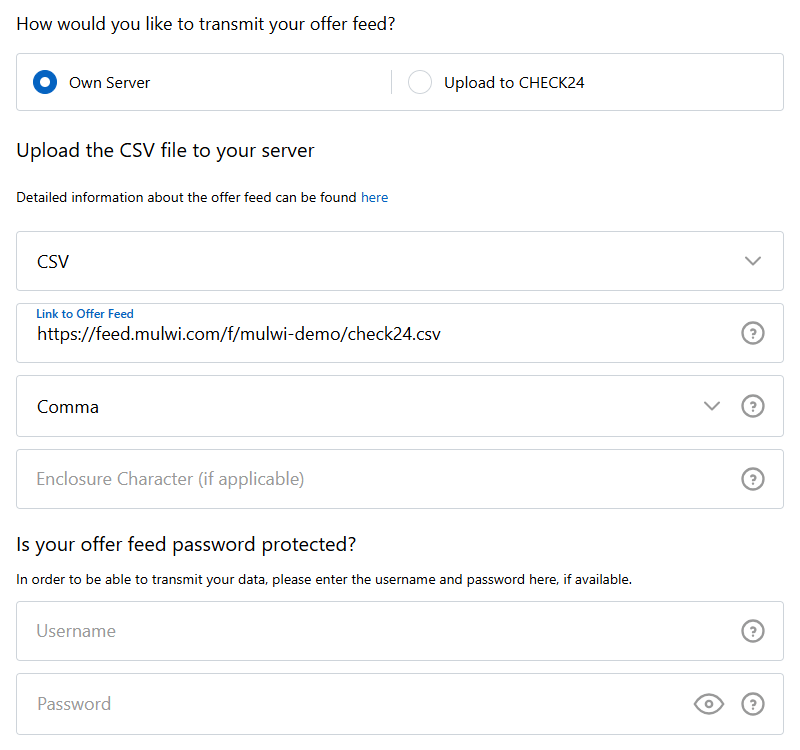
Uploading a product feed to CHECK24 Merchant Center via URL
- Click the Submit Offer Feed Now button to finish and upload the feed.
NOTE
You may have to wait for CHECK24 to validate the feed you've uploaded.
After CHECK24 finishes processing it, you will receive an email with the results.
Upload CHECK24 feed manually
NOTE
For the manual upload method, CHECK24 only supports feeds up to 64 MB in size.
If your feed exceeds this limit, break the feed down into multiple files.
First, you download the feed file from Mulwi in such way:
- Navigate to the feed you want to download.
- Find the Feed block.
- If you have a single file, simply click the Download button.
- If you've split your feed into multiple files, first click View all feed files, and then click Download next to the file you need.
As a result, the feed file will be downloaded to your device.
After that, you simply log in to your CHECK24 Merchant Center dashboard and upload the feed in such way:
Steps for uploading a product feed to CHECK24 manually
- Go to Settings > Offer Feed.
- Click Edit Offer Feed.
- Choose Upload to CHECK24 as How would you like to transmit your offer feed.
- Click Select offer feed in the Upload your offer feed to CHECK24 section to open the file explorer.
- Find the feed file on your device.
- Select the file and click Open.
- Fill out the How is your offer feed formatted? section details:
- File format. Set to CSV. If you've compressed your feed file, then set to CSV, ZIP-compressed instead.
- Delimiter. Set to Comma. If you've customized your feed and changed the delimeter, then set to the same delimeter as in your feed settings.
- Enclosure Character. Leave empty.
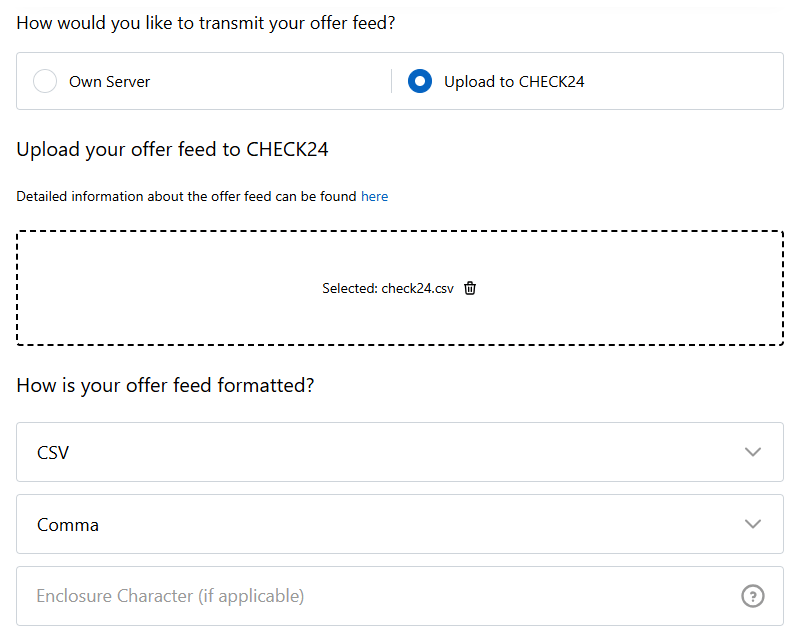
Uploading a product feed to CHECK24 Merchant Center manually
- Click the Upload Offer Feed button to finish and upload the feed.
NOTE
You may have to wait for CHECK24 to validate the feed you've uploaded.
After CHECK24 finishes processing it, you will receive an email with the results.
FAQ
How to filter products in the CHECK24 feed?
You can change which products to list in your CHECK24 feed using product filters. You simply have to create a filter and apply it to your CHECK24 feed.
If you need assistance with product filters for CHECK24, contact our support team, and we'll gladly set up custom product filters for all your needs.
How often does Mulwi update products in the CHECK24 feed?
Mulwi updates products in your CHECK24 feed each time something changes in your Shopify store. Mulwi instantly detects the new data and immediately includes it in the feed.
Your products on CHECK24 will be refreshed with the latest information as soon as CHECK24 fetches an updated feed.
How to add additional required fields for lighting products?
CHECK24 merchants must specify the following information for lighting products in the feed:
- energy_efficiency_label. The link to a PDF or jpg file with the product's energy efficiency label.
- energy_efficiency_category. The product's energy efficiency class from A to G.
- product_data_sheet. The link to a PDF file with the product's data sheet.
- EPREL_registration_number. The product's registration number in the EPREL database.
In Mulwi, you provide information for lighting products in the CHECK24 feed using their respective attributes.
How to add lighting product information to the CHECK24 feed in Mulwi
- Navigate to the CHECK24 feed you want to configure.
- Find the Template section.
- Select the situation you're facing and follow the provided instructions:
- If your feed is already customized, click Edit template to open the feed template editor.
- If you haven't customized your feed yet, click Customize Feed, carefully read the warning and click Continue. After that, Mulwi will redirect you to the template editor of your newly customized feed.
- Add all the additional attributes you need according to the CHECK24 feed specification.
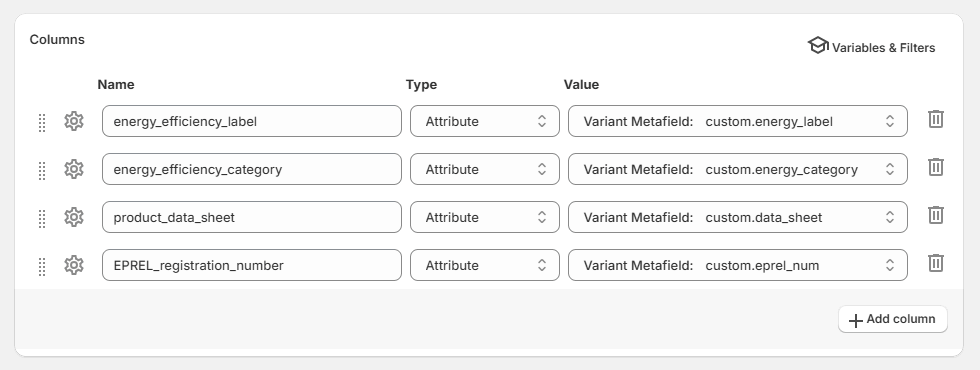
Lighting product information in a CHECK24 feed
If you need help adding lighting product information to your CHECK24 feed, contact our support team, and we'll gladly assist with including all the information you have.