TikTok
On this page, you will find out how to:
- connect your Shopify store to TikTok;
- prepare a TikTok product feed using Mulwi;
- upload your Mulwi feed to TikTok.
1. Connect your store to TikTok
You connect your store to TikTok through a respective account in TikTok Business Center.
NOTE
In order to create a TikTok Business Center account, you first must get a TikTok for Business account.
To register in TikTok Business Center and connect your online store to TikTok, follow these steps:
Steps for registering in TikTok Business Center and connecting a Shopify store to TikTok
- Log in to your TikTok business account.
- Open the TikTok Business Center page in your web browser and click Get Started.
- Select whether you're an advertiser or an agency.
- Fill out your business information and click Create to complete the initial setup.
- Add a TikTok Pixel to track your online store traffic by following the instructions in this TikTok Pixel setup tutorial.
- If you plan to run TikTok Ads, connect an ad account to your Business Center by following the instructions in this TikTok Ads account creation tutorial.
- If you plan to open a TikTok Shop, link a new TikTok Shop to your Business Center by following the instructions in this TikTok Shop setup tutorial.
2. Create the product feed
NOTE
TikTok Ads and TikTok Shop use different product feed structures.
Thus, if you want to sell with both methods, you need to create two separate product feed.
To upload your products to TikTok, you need to create and configure the product feed. To do this, log in to your Shopify store admin and follow these steps:
Steps for creating a TikTok Ads product feed in Mulwi
- Go to Apps > Mulwi Feeds > Feeds.
- Click Add Feed to generate the new feed.
- Choose the TikTok feed template. The feed is created in CSV format.
- In the pop-up window, select which product data to use as feed content and click Create. You can change this later in the Feed content field of the feed's general settings if necessary.
- Set feed's status in the This feed is currently block to Active.
- Fill in the general feed information:
- Feed Internal Name. Give your feed a descriptive name.
- Filename. Give your feed file a unique name.
- Max Number of Items per File. Limit the amount of products in the feed.
- Compression. Compress the feed file if necessary.
- Protect feed with password. Password-protect your feed if necessary.
- In the Applied Filters section, you can use product filters to choose what products should be included in the feed.
- In the Template section, pick appropriate values for TikTok's required Attributes:
- Gender. Specify the gender that the product is intended for: male, female, or unisex.
- Age group. Specify the age group that the product is intended for: newborn (0-3 months old), infant (3-12 months old), toddler (1-5 years old), kids (5-13 years old), or adult (13 years old or more).
- Size. Select all the attributes that indicate the product's size.
- Color. Select all the attributes that indicate the product's color.
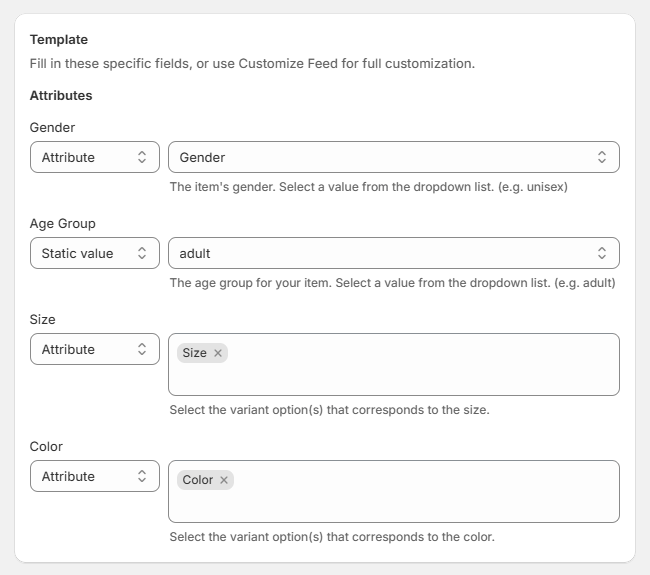
Filling out required attributes in a TikTok Ads feed template
- In the Source of prices section, you can set product prices from Markets or Price Lists.
- In the Stock Locations section, select from which locations you want to include stock levels and availability information.
- In the Translation section, you can select a language to translate your feed into.
- Configure the Google Analytics section if you have an analytics campaign.
- Click Save at the top of the page to finish and generate the feed.
NOTE
You won't be able to change the Filename after you save the feed.
After saving the new feed, you can customize it if necessary.
Steps for creating a TikTok Shop product feed in Mulwi
Product feeds for TikTok Shop require additional configuration for each specific store. You should ask our support team to set this feed up for you in such way:
- Go to Apps > Mulwi Feeds > Support Center.
- Fill out the contact form with your request details.
- Click Submit.
Our support team will write you back as quickly as possible.
3. Upload the feed to TikTok
You upload the feed to TikTok via the TikTok Ads Manager (for TikTok Ads) and TikTok Seller Center (for TikTok Shop).
How to upload a TikTok Ads product feed to TikTok Ads Manager
First, you copy the feed's URL from Mulwi in such way:
- Navigate to the feed you want to upload.
- Find the Feed block.
- If you have a single file, simply click the Copy feed URL button.
- If you've split your feed into multiple files, first click View all feed files, and then click Copy feed URL next to the file you need.
As a result, the feed URL will be copied to your clipboard.
After that, you simply log in to your TikTok Ads Manager and upload the feed in such way:
- Under the Tools section, select Management > Catalogs.
- On the Product Catalog tab, click Add Catalog.
- In the pop-up window, fill out your catalog details and click Create.
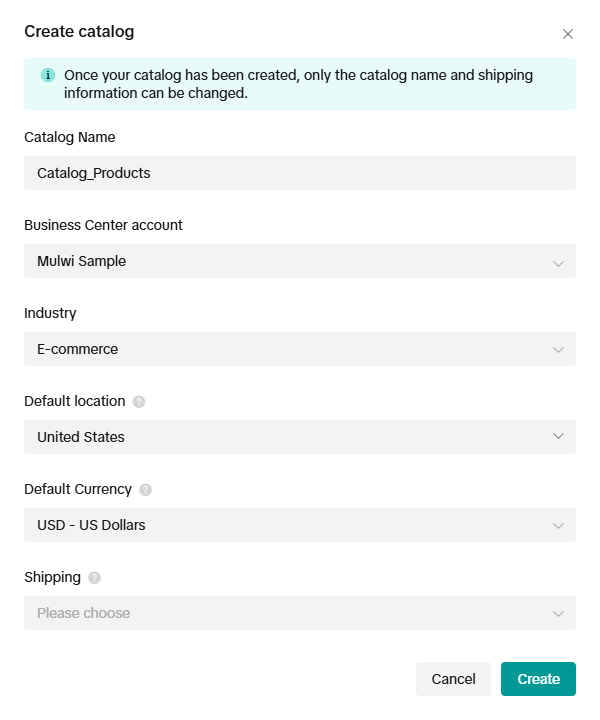
Specify basic information about your new TikTok catalog
- On your catalog overview page, click Add products.
- Select Data Feed Schedule as an upload method and click Next.
- Configure the feed schedule details:
- Data Feed Name. Give your feed a descriptive name.
- Data Feed URL. Paste the feed URL you've copied from Mulwi.
- Data Feed URL Login Details. Add authentication information in the Username and Password fields if your feed is password-protected.
- Automatic Upload. Change how often TikTok should fetch the feed.
- Update Method. Select whether TikTok should leave or delete catalog items that aren't in your feed when fetching a new file.
- Click Import to finish and upload the feed.
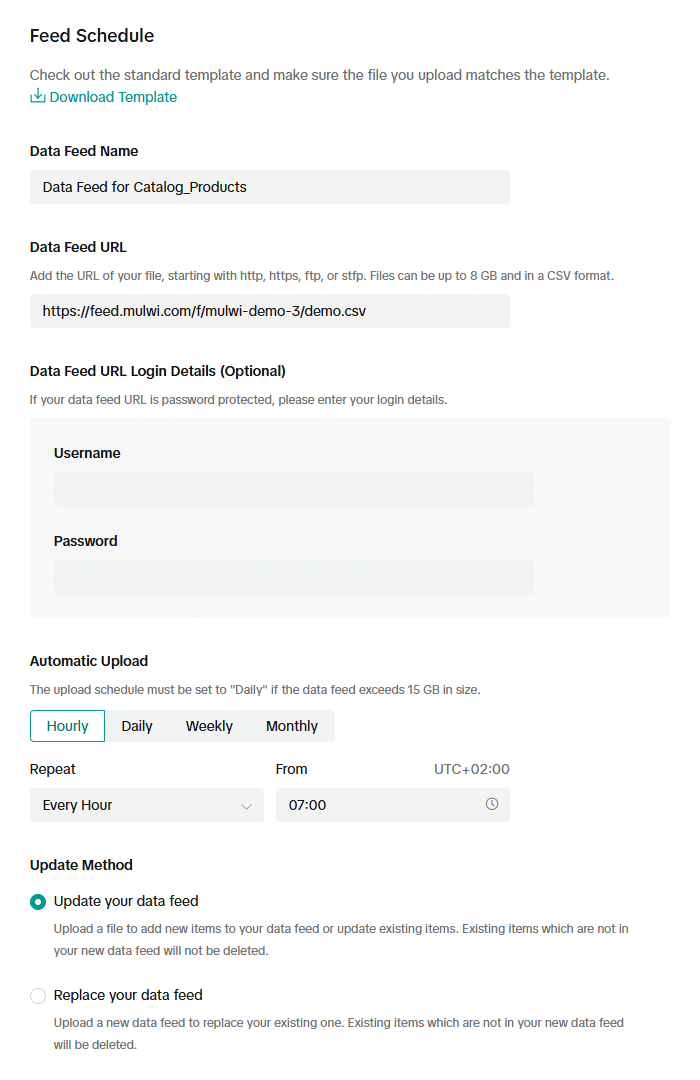
Data feed upload schedule configuration in TikTok catalog
How to upload a TikTok Shop product feed to TikTok Seller Center
First, you download the feed file from Mulwi in such way:
- Navigate to the feed you want to download.
- Find the Feed block.
- If you have a single file, simply click the Download button.
- If you've split your feed into multiple files, first click View all feed files, and then click Download next to the file you need.
As a result, the feed file will be downloaded to your device.
After that, you simply log in to your TikTok Seller Center and upload the feed in such way:
- Go to Products > Manage Products.
- Click the Bulk action button and select the Bulk listing option.
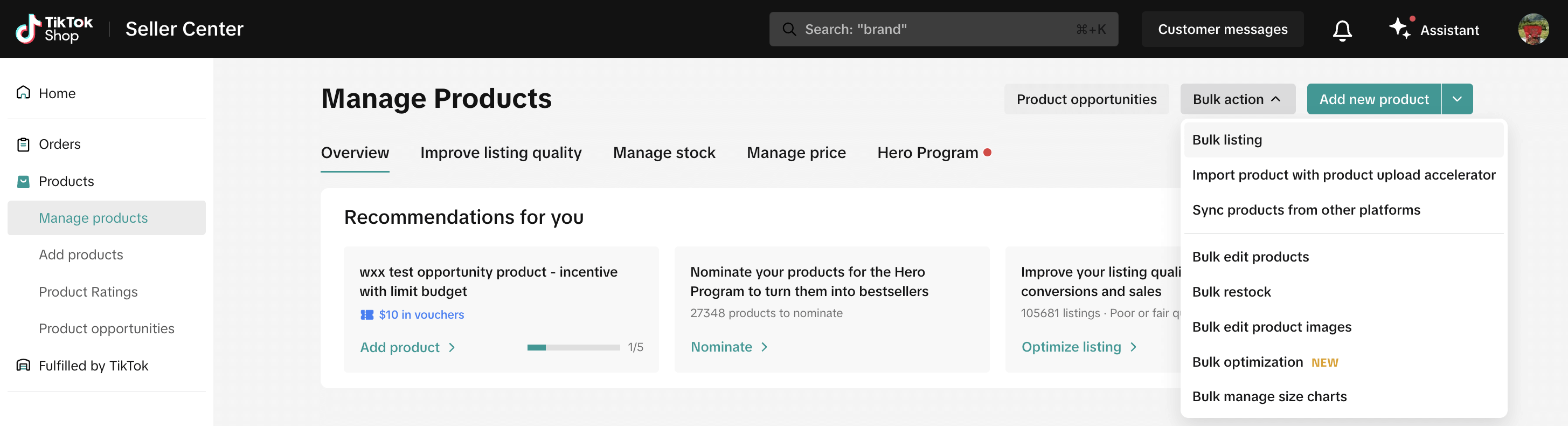
Bulk listing tool in TikTok Shop
- Select Step 2. Upload spreadsheet. You should skip Step 1. Download template because you've already prepared a product feed in Mulwi.
- Click the Attach your spreadsheet here section to open the file explorer.
- Find the feed file on your device.
- Select the file and click Import to finish and upload the feed.
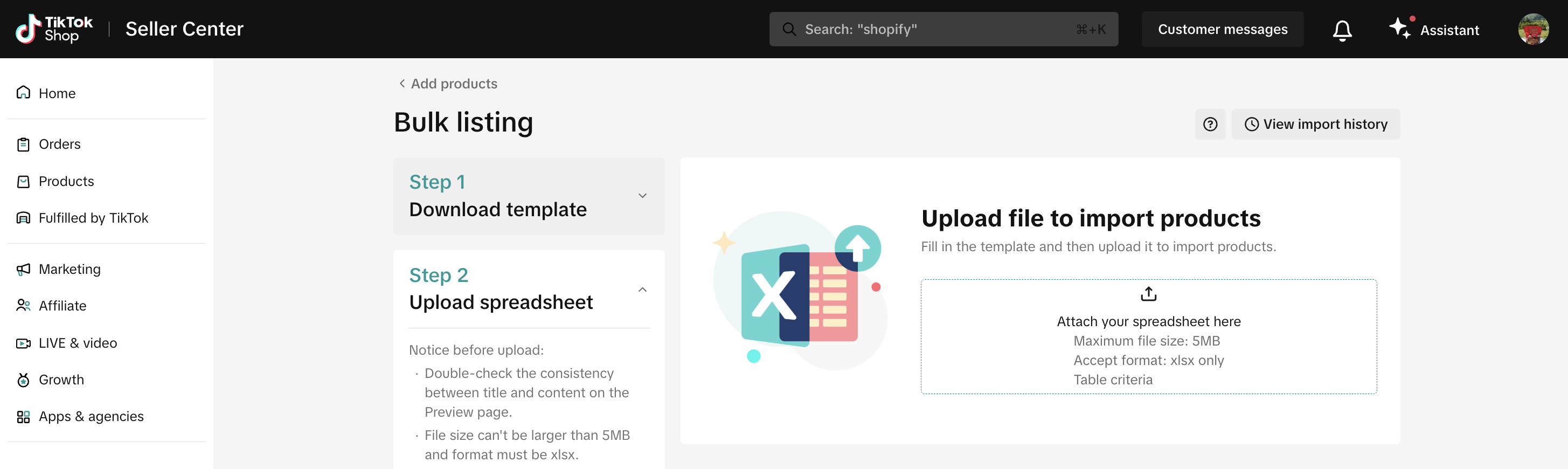
Uploading TikTok Shop product feed using bulk listing
NOTE
You may have to wait for TikTok to validate the feed you've uploaded.
After TikTok finishes processing it, you will receive a report with the results.